
Your grow diary
Create your first diary
Set up your first diary on Android, from plant details to SAVE AND CREATE.
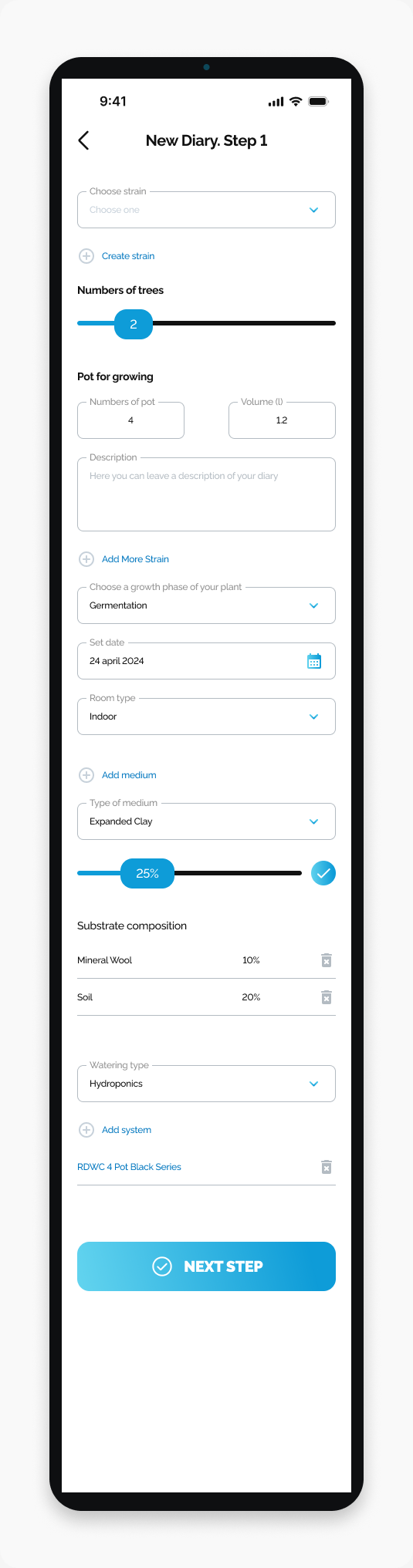
Create a diary by completing New Diary. Step 1 and New Diary. Step 2. Registering an account does not create a diary automatically.
Before you start
Sign in to your HarvestED account. This guide begins on New Diary. Step 1.
Complete Step 1
Tap Choose strain. First, open the Seedbank tab and choose your seedbank. Then open the Strain tab and select the strain. Strains with the same name can differ significantly between seedbanks, so choosing the seedbank first helps you find the right entry for your grow.
Set the plant count.
Enter the pot count under Pot for growing.
Enter the pot volume in Volume (l).
Select a growth phase.
Choose its date in Set date.
Select a Room type.
Add your growing medium using Add medium.
Select a Watering type.
Tap NEXT STEP.
Complete Step 2
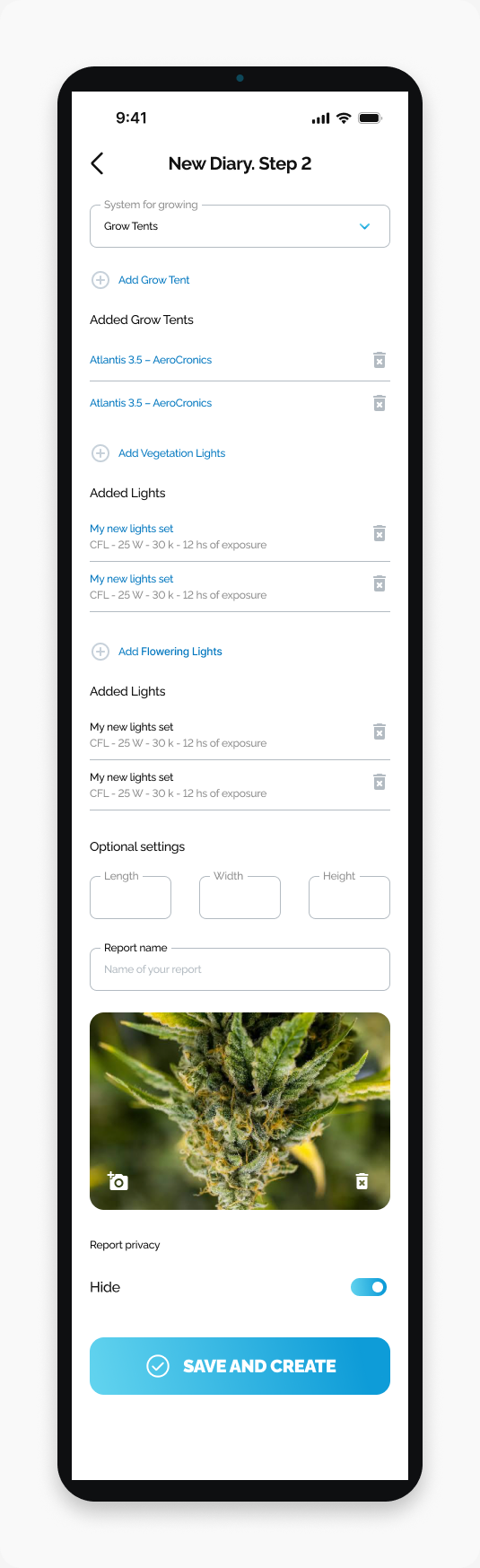
Add your equipment.
Enter a name in Report name.
Review the Hide control under Report privacy.
Tap SAVE AND CREATE.
If you cannot continue
Read any message shown beside a field before trying again.
Frequently asked questions
Does signing up create a diary automatically?
No. Create your diary separately after signing in.
Where do I name my diary?
Enter the name in Report name on New Diary. Step 2.
Where can I add a description?
Use the Description field on New Diary. Step 1 to add context about your diary.
Where can I check the privacy setting?
Review the Hide control under Report privacy on New Diary. Step 2 before tapping SAVE AND CREATE.
Related help
Need help with a different screen or app version? Tell our team