
Your grow diary
Where can I see my diary’s current growth phase?
Find the Current Phase label near the top of an active Android diary.
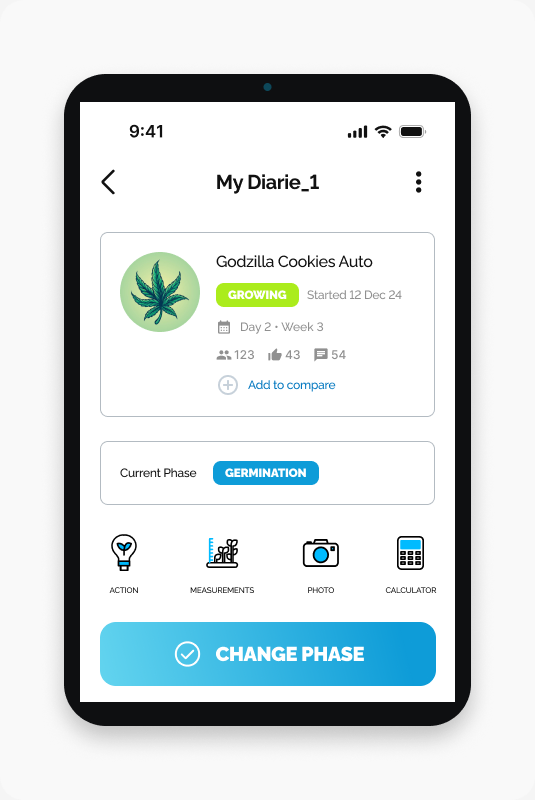
Your diary shows its phase in the Current Phase row, below the diary summary card.
Start here
Open HarvestED and open the active diary you want to check.
Find the current phase
Scroll to the top of the diary.
Find Current Phase below the summary card.
Read the phase name next to the label.
The example below shows GERMINATION. Your diary may show a different phase.
What happens next
You have checked the phase displayed in the diary. You do not need to tap CHANGE PHASE to view it.
If you cannot find Current Phase
Check that you opened an active diary. This guide does not cover completed diaries or changing a phase.
View this article in the Help Center ↗
Need help with a different screen or app version? Tell our team